App guide · 8x8
8x8 noise suppression: five levels, one sensible choice for your room
By the LineSide desk
8x8 Work for Desktop lets you pick how hard it filters your microphone: None, Low, Moderate, High or Very high. For most people the right answer is High, which was 8x8's fixed setting before the levels became adjustable. Drop to Low when the room is quiet and the mic is decent, and to None or Low if Krisp or another suppressor already cleans your audio. Use Very high only when callers still hear the room, because 8x8's own documentation warns it costs CPU and can make your voice sound "rumbly or boxy / muddy".
A noise layer for this app
Krisp installs as a virtual microphone and speaker that VoIP apps can select.
Get KrispThe five levels in one table
8x8's user guide describes each level by the environment it is meant for. Two pairs share a description, which is unusually candid: None and Low are both for "high-fidelity microphones in low-noise environments", and Moderate and High are both for "persistent background noise, such as a computer fan or air conditioner, low/moderate music volume playing". Very high stands alone: it suppresses "all background sound that isn't speech", at a price.
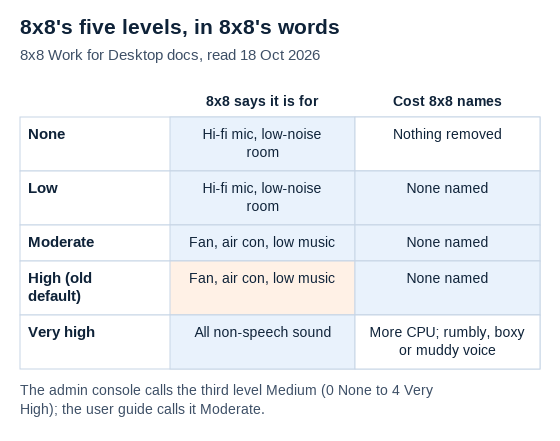
Read the shared descriptions as a hint about strength, not purpose. Within each pair the second level filters harder. That makes High the strongest setting 8x8 does not attach a warning to, and the sensible default for a home office or a shared one. A note in the same guide confirms it: before this release, 8x8 Work "automatically suppressed unwanted background noise" and "by default, the noise suppression level was set at High".
Admins see the same scale with slightly different labels. The Admin Console's Work Apps Settings list the default as a number from 0 to 4 (None, Low, Medium, High, Very High) and require 8x8 Work for Desktop version 8.9 or later. "Medium" in the console and "Moderate" in the app are the same step.
Pick your level by room
8x8's descriptions tell you what each level targets. Turning that into a choice is our job, and this is the rule of thumb we would give anyone on our desk:
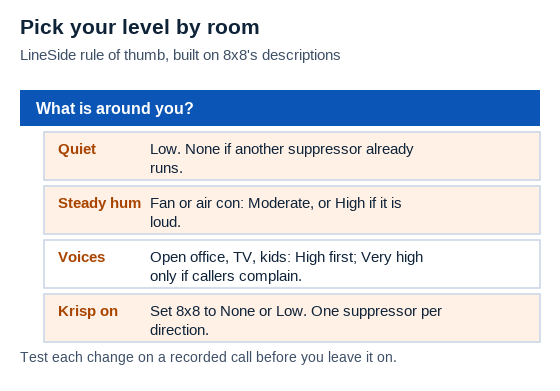
Voices are the hard case. Moderate and High are described for steady noise, so a colleague talking at the next desk may still get through. That is the one situation where Very high earns its warning: if callers keep hearing other people, try it on a recorded test call and listen to yourself. If you sound like you are talking through a cardboard tube, go back to High and fix the room instead, or use a dedicated voice-isolation tool.
Where to change it
The level lives in the desktop app's settings; 8x8's profile-and-settings guide lists "Set up the noise suppression level for microphone input" among them, and the guide says you can change it "anytime", including while you are on a call. Two things can get in your way. Your administrator can set the default for everyone and lock settings so users cannot change them; if the control is greyed out or missing, ask whoever runs your 8x8 Admin Console. And the feature is a desktop-app feature from version 8.9: 8x8 Work for Web is not listed.
AGC: the separate toggle
Next to suppression sits a different control: Automatically adjust mic sensitivity, 8x8's enhanced Automatic Gain Control. It lives under Settings, Audio & Video, and 8x8 says it is available only on 8x8 Work for Desktop, not the web app. AGC does not remove noise. It raises your voice level when you speak softly or sit far from the microphone.
That is helpful for quiet talkers and laptop mics across a desk. It is unhelpful in a noisy room, because a system that turns up quiet sound can also turn up the room between your sentences. If callers say the background "swells" when you stop talking, switch AGC off, set your input level by hand in your operating system, and keep suppression on. Our softphone mic settings guide covers the manual levels.
Don't stack: 8x8, headset and Krisp
Every suppressor in the chain takes a bite out of your voice along with the noise. A headset with its own noise-cancelling microphone, Windows or macOS voice processing, 8x8 at High, and Krisp on top is four filters in a row, and the result is often thin, warbly speech that sounds worse than mild background noise. The rule we repeat on every page: one suppressor per direction. The longer explanation is in our note on double noise suppression.
If you use Krisp because you also take calls on other apps, let Krisp do the filtering and set 8x8 to None or Low. If 8x8 is your only calling app and High sounds fine, you do not need anything else.

Calls on 8x8 and three other apps?
Krisp sits under every calling app on your Windows or Mac desktop as a virtual microphone and speaker, so one setting covers 8x8, your meeting tool and any softphone. Krisp has no $0 tier. A week's trial needs no card; after it, Core runs $96 a year (shown as $8 a month) or $16 if you go month by month (krisp.ai, read 2026-10-18).
Try Krisp with 8x8 → 8x8's own High setting comes first, and costs nothing extra.Quick answers
- Does 8x8 have noise cancellation?
- Yes. 8x8 Work for Desktop (version 8.9 and later) has five noise suppression levels for your microphone: None, Low, Moderate, High and Very high. Before the levels were adjustable it ran at High by default. Read 2026-10-18.
- Which 8x8 noise suppression level should I use?
- High for most rooms; Low where the room is silent and the mic is good; None or Low if another suppressor such as Krisp is running. Save Very high for noisy rooms where callers still hear voices, and listen back to check your voice.
- Why does my voice sound muddy on 8x8?
- If you are on Very high, 8x8 itself says that level can sound "rumbly or boxy / muddy". Step down to High. If you are already on High, check for a second suppressor in your headset software or Krisp.
- What does "Automatically adjust mic sensitivity" do?
- It is 8x8's Automatic Gain Control: it raises your voice level when you speak quietly or sit far from the mic. It does not remove noise, and in loud rooms it can lift the background too.
- Why can't I change the level?
- Your admin can set a default and lock it in the Admin Console, and the control needs the desktop app at version 8.9 or later. The web app is not listed.
For how 8x8 compares with RingCentral, Dialpad, 3CX, Vonage, Aircall and Zoiper, start at the VoIP background noise guide.