App guide · Dialpad
Dialpad noise settings: AI Voice Isolation, explained honestly
By the LineSide desk · Dialpad help docs read 2026-09-20
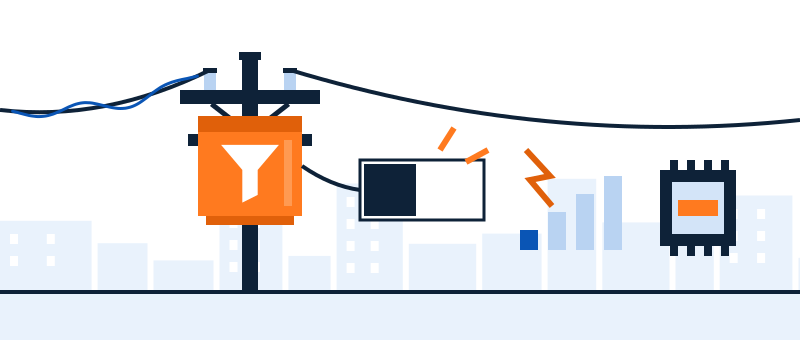
Dialpad is the easy case on this site: its noise filter, AI Voice Isolation, is switched on by default for every user, so most Dialpad calls are already being cleaned without anyone touching a setting. What's worth your five minutes is the part nobody reads: the conditions under which Dialpad turns that filter off on its own — and what to do when the built-in isn't enough for your room.
What Dialpad ships, per its own help center
Dialpad's help article on AI Voice Isolation (read 2026-09-20) establishes three facts that shape everything below:
- It's on by default for all Dialpad users — you don't enable it, you inherit it. If your calls sound clean, this is probably why.
- The toggle lives in Hardware Settings. To turn it on or off from the app, head to Hardware Settings and use the checkbox beside AI Voice Isolation; the same control appears under the Hardware Settings section of App Preferences.
- It disables itself under pressure. Dialpad's docs say that on a bad connection, or when the app detects low system performance, AI Voice Isolation automatically turns off and default settings apply to your next call.
The auto-off clause is the real story
Read that third fact again, because it explains a support mystery that burns real teams: "my noise filter works some days and not others." It isn't haunted — it's adaptive. Dialpad is choosing call continuity over call polish when your machine or network is struggling, which is a defensible engineering call, but it means:
- The users most likely to lose noise filtering are the ones on underpowered laptops — the same machines running a browser with forty tabs while on a call.
- The filter drops out during network trouble — which is exactly when your call already sounds rough, so the noise piles onto the artifacts. (Sorting noise from network damage is its own skill: our codec and line-noise guide covers it.)
- The auto-off applies to your next call, not announced mid-conversation — so the change is easy to miss and easy to misdiagnose.
- Bad connectionLow system performance
- AI Voice Isolation switches itself off
- Default settings apply to your next call
The practical move: if callers report noise on some calls only, check system load and connection quality on those days before touching any audio setting. And if your machine is chronically busy, a filter that runs as its own lightweight process (below) is more predictable than one competing with the softphone for resources.
Checking and changing the setting, step by step
- Open Hardware Settings. In the Dialpad app, go to your settings and find the Hardware Settings section (also reachable via App Preferences).
- Find the AI Voice Isolation checkbox. Checked = Dialpad filters your microphone audio. This is the state most accounts are already in.
- While you're there, verify the device. Hardware Settings is also where Dialpad picks its mic and speaker. A right filter on the wrong microphone still sounds terrible — the mic settings guide covers the device-picker discipline every softphone needs.
- Test against your real noise. Call a colleague and type, run the fan, open the door. Quiet-room success proves nothing about the room you actually work in.
The sixty-second check before a call that matters
Because the filter can shed itself silently, we run this before anything important: open Hardware Settings and confirm the AI Voice Isolation box is still checked and the right microphone is selected; close whatever is hammering the CPU (the browser with forty tabs is the usual offender); and if the network has been flaky today, assume the filter may bow out and pick a quieter spot to call from. Sixty seconds, and it covers all three conditions Dialpad's docs say can change your audio without asking you.
When AI Voice Isolation isn't enough
Dialpad's built-in is genuine AI suppression, and for steady noise plus the occasional keyboard it's usually all you need. The cases where we'd add a dedicated layer:
- Same-room voices. Kids, roommates, an open floor — competing speech is the hardest problem in this category, and dedicated tools with speaker-side filtering give you more control over both directions.
- The auto-off machine. If Dialpad keeps shedding the filter on your hardware, an external virtual-device filter (which Dialpad simply sees as a clean microphone) removes that variability.
- Inbound noise. AI Voice Isolation is about your microphone; a speaker-side filter cleans what you hear from noisy callers — a distinct job the built-in doesn't do.
The layering rule is the same as every app on this site: one filter per direction. If you put Krisp Microphone under Dialpad, uncheck AI Voice Isolation so the two models don't fight over the same audio — the failure mode (clipped word-endings, watery tails) is dissected in our double-suppression note.

A filter that doesn't depend on the app's mood
Krisp runs as its own virtual mic and speaker under Dialpad — no auto-off clause, works across every other softphone you use, and cleans inbound audio too. 7-day free trial, no card required; paid plans from $8/month billed annually (checked 2026-09-20).
Try Krisp under Dialpad → Sponsored line: subscribe through this button and Krisp may pay LineSide a commission. Dialpad's own default-on filter costs nothing and is all many users need; we say so first.Quick answers
- Is Dialpad's AI Voice Isolation on by default?
- Yes — Dialpad's help center states it's turned on by default for all users (read 2026-09-20). If you've never touched Hardware Settings, it's on.
- Why does my Dialpad noise filtering come and go?
- By design: Dialpad automatically disables AI Voice Isolation on bad connections or low system performance, and default settings apply to your next call. Check machine load and network before assuming the feature is broken.
- Does AI Voice Isolation clean up what I hear from callers?
- It's positioned as making your calls clearer by reducing background noise from your side. For inbound cleanup — noisy warehouses, cars, cafés on the caller's end — use a speaker-side filter such as Krisp's.
- Do I need to change anything if my calls already sound fine?
- No. Default-on means the median Dialpad user should leave the setting alone. Bookmark this page for the day a caller says otherwise.
For the cross-app picture — which softphones ship filters, which ship nothing — see the VoIP background noise cornerstone guide.